SEBA Mapsites class #01 – Mapsite ‘App’ Buttons on homescreen
If you haven’t yet, watch the “Mapsite Study Book Intro” before you proceed.
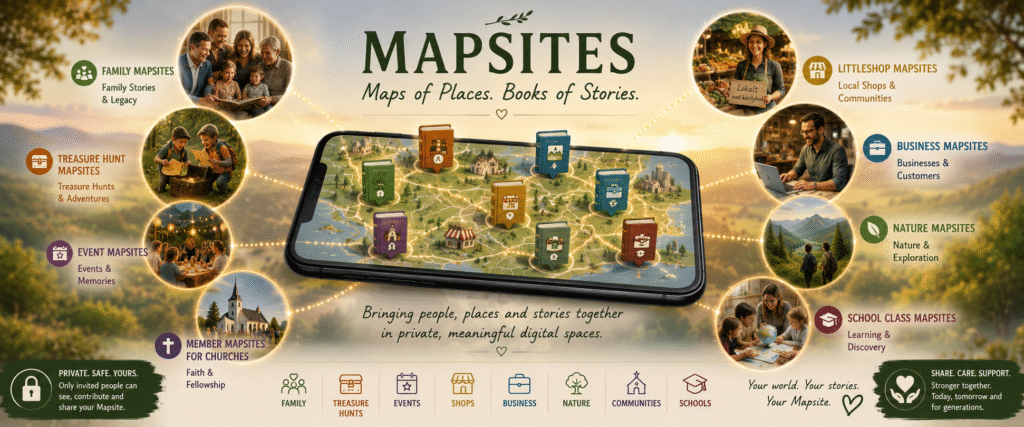
Add Mapsites Gateway as button on your home screen
1. Click on the link here to open => Mapsites Gateway
You will now see the Mapsites, but don’t click anything yet, because we want to add a button to your telephone home screen first.
On Android in Chrome Browser:
You have the Mapsites Gateway open in your Chrome Browser.
1. Press the three dots Menu button in upper right corner
2. Find “Add to home screen” near the bottom
3. You see “Create Shortcut” – Name it “Mapsites” or “Mapsites Gateway”, then tap “Add”
4. You see “Add to Home Screen”. You can just click “Add” or (recommended), touch and hold to place the button manually.
5. After you have added, you can tap and hold it to drag it to place it where you want it.
Now you have easy easy one-click access to Mapsites Gateway.
On Android in Samsung Browser it is almost the same.
On iPhone in Safari Browser:
You have the Mapsites Gateway open in your Safari Browser.
1. Press the Share button (Little square with an arrow up at the bottom center)
2. Scroll down to you find “Add to home screen”
3. You see “Add to home screen”. You can just click “Add” or you can chose to first change the name to “Mapsites Gateway”.
4. It now comes in as a button on your home screen.
5. After you have added, you can tap and hold it to drag it to place it where you want it.
Now you have easy one-click access to Mapsites Gateway.
Adding a Mapsite as a Home-screen button
In Mapsites Gateway you can access Mapsites by one click on the “Open” button
Important: If you are a registered user and member of private Mapsites, make sure at the top, that it reads “Logged in as ” and then your name. If you are not logged in, the list will not show the private Mapsites you are a member of.
If you want to have a button to a Mapsite, for example to the SEBA Classroom 2026 mapsite:
1. Click Open on the Mapsite
2. Now do the same “Add to Home Screen” procedure as you did under “Add Mapsites Gateway as button on your home screen” above
TIP: How to open Mapsites gateway from any Mapsite
Click the Mapsite name in the very upper left corner (where it also says “Private Mapsite” or “Public Mapsite). That will open the Mapsites Gateway from any Mapsite.
Learn More about Mapsites – Join SEBA Classroom 2026
Mapsites are also designed for Multilanguage Education. SEBA Classroom 2026 is where we add educational books for Savannah Entrepreneur and Business Academy students.
If you want to join the SEBA Classroom 2026, then you have two main options:
Option A): Ask a SEBA Classroom 2026 student to invite you by email.
From Mapsites Gateway, students who are already approved members, can invite you by email.
Option B): Apply for membership
Important: Before you proceed here: if you know an existing student, it is recommended that you ask him or her to send you an invite link, because it gives both him/her and yourself score points that will come to benefit you both later.
If you don’t know an existing SEBA Classroom 2026 student, proceed with:
1. Click here => SEBA Classroom 2026
If you are not yet a member or if you are not logged in, you will get a “This is a Private Mapsite” screen.
2. Click ‘Apply for membership’ and follow the instructions.